

Your payment, step by step
How to pay with crypto
From checkout to confirmation, follow these seven steps to pay for your order through NOWPayments. We’ll use Binance and USDC as an example.
- Step 1 of 7
Select crypto at checkout
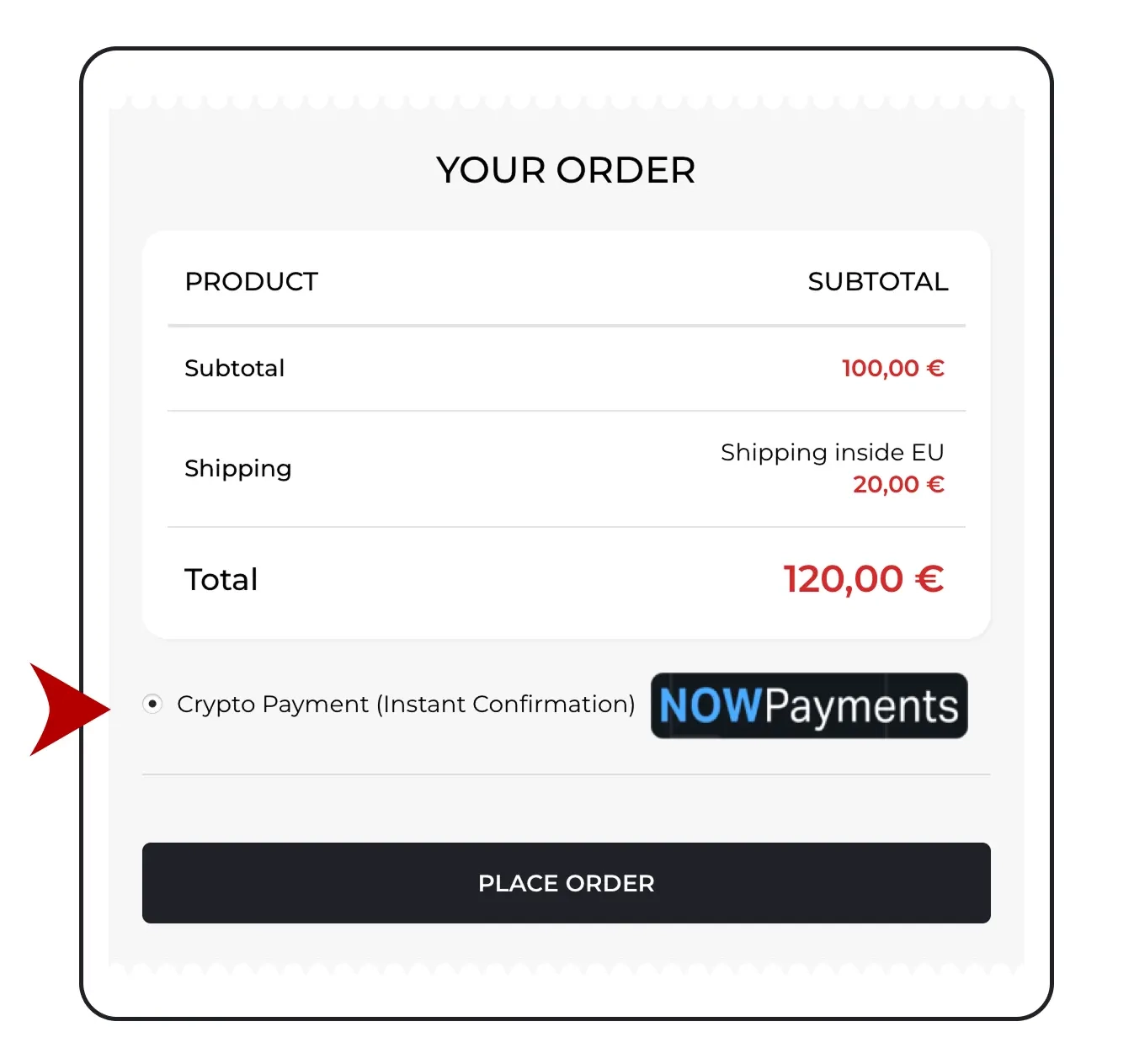
At checkout
- Choose Crypto Payment as your payment method.
- Click Place Order to continue to the NOWPayments payment screen.
- Step 2 of 7
Review your payment details
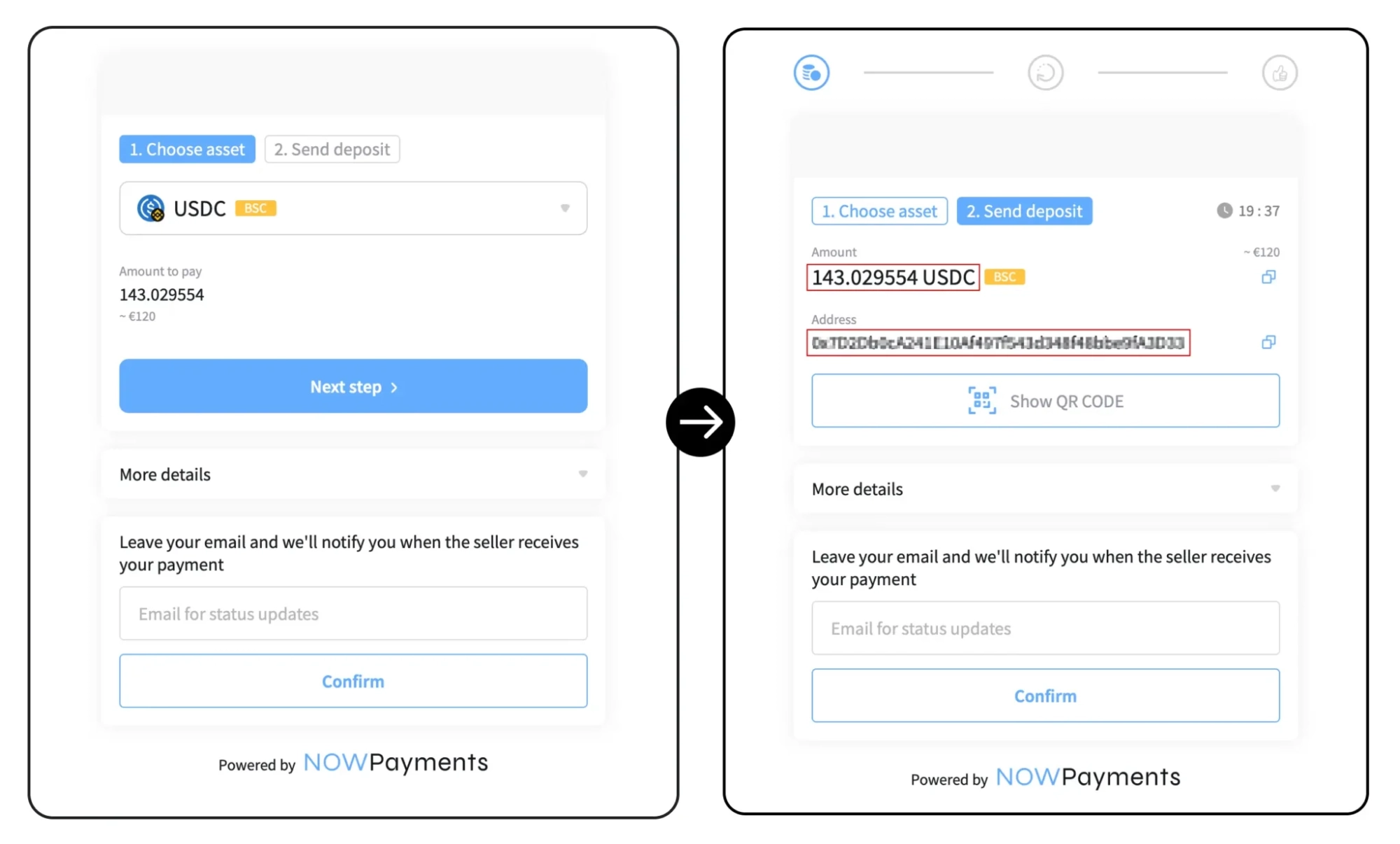
On the payment screen
- Select the coin and network you want to use. The example shows USDC on BNB Smart Chain (BEP20).
- Note the amount, then continue to the next step.
- Copy the wallet address, confirm the network, and save the exact crypto amount requested by NOWPayments.
Keep your payment screen open. Use the live details for your own order, including any payment deadline; the screenshots are examples.
- Step 3 of 7
Go to Binance.com
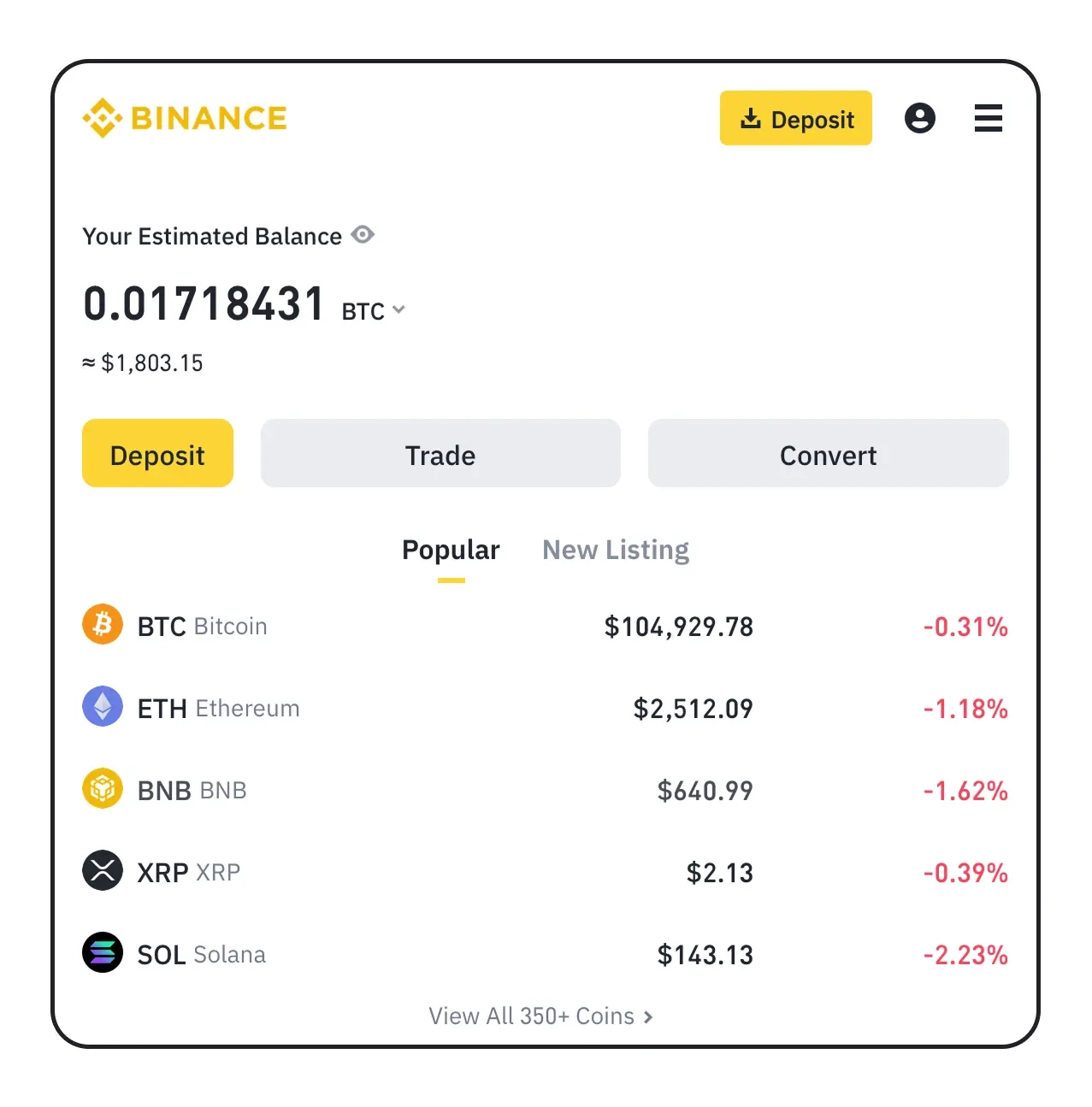
Once you’re logged in
- Open Binance.com and log in to your account.
- Click the yellow Deposit button at the top.
New to Binance? You may need to complete identity verification before buying or depositing crypto. Available options can vary by country and account.
- Step 4 of 7
Buy crypto with EUR
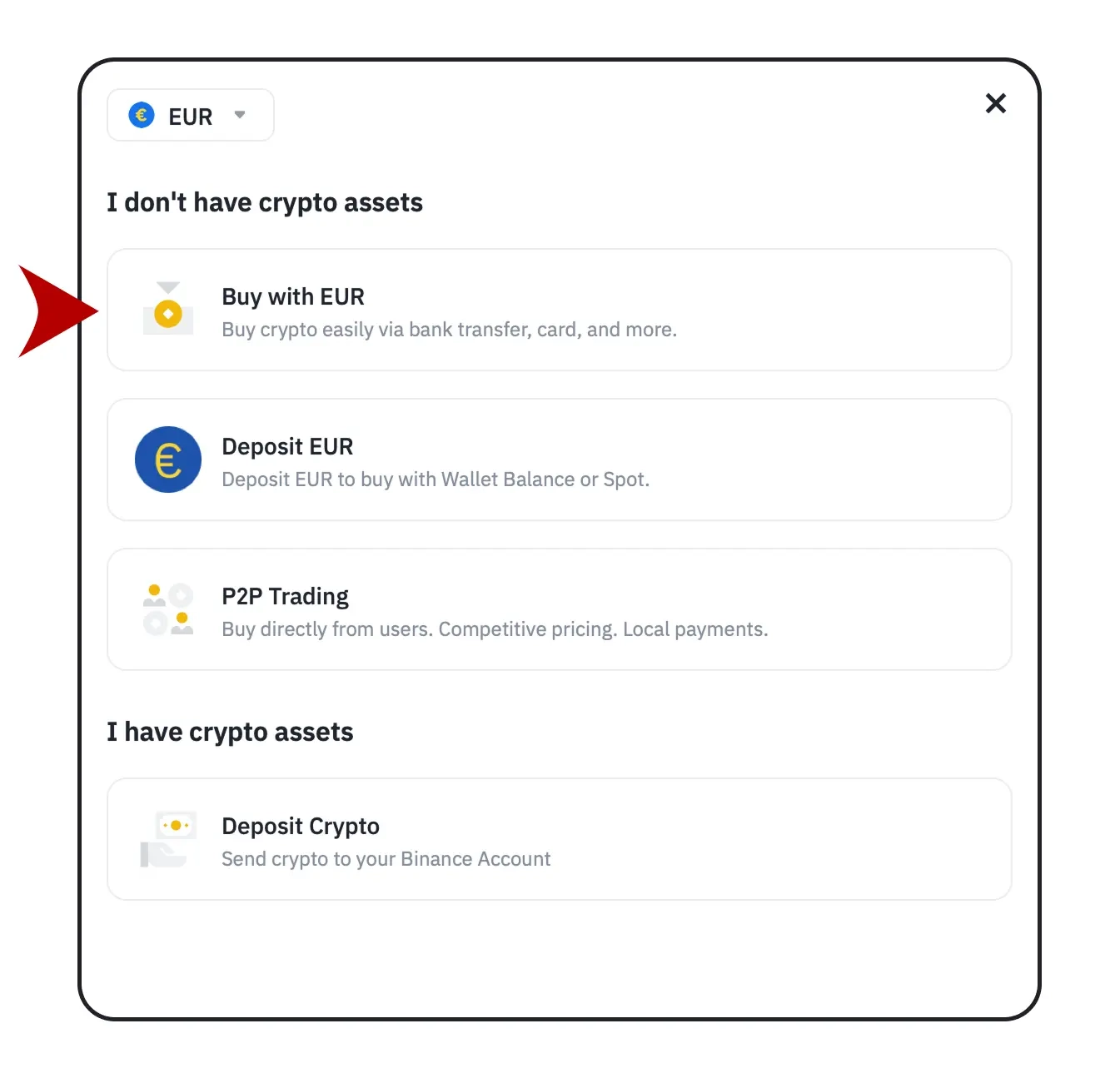
On the deposit page
- Select Buy with EUR, if available for your account.
- Continue to purchase crypto using one of the payment methods offered by Binance.
- Step 5 of 7
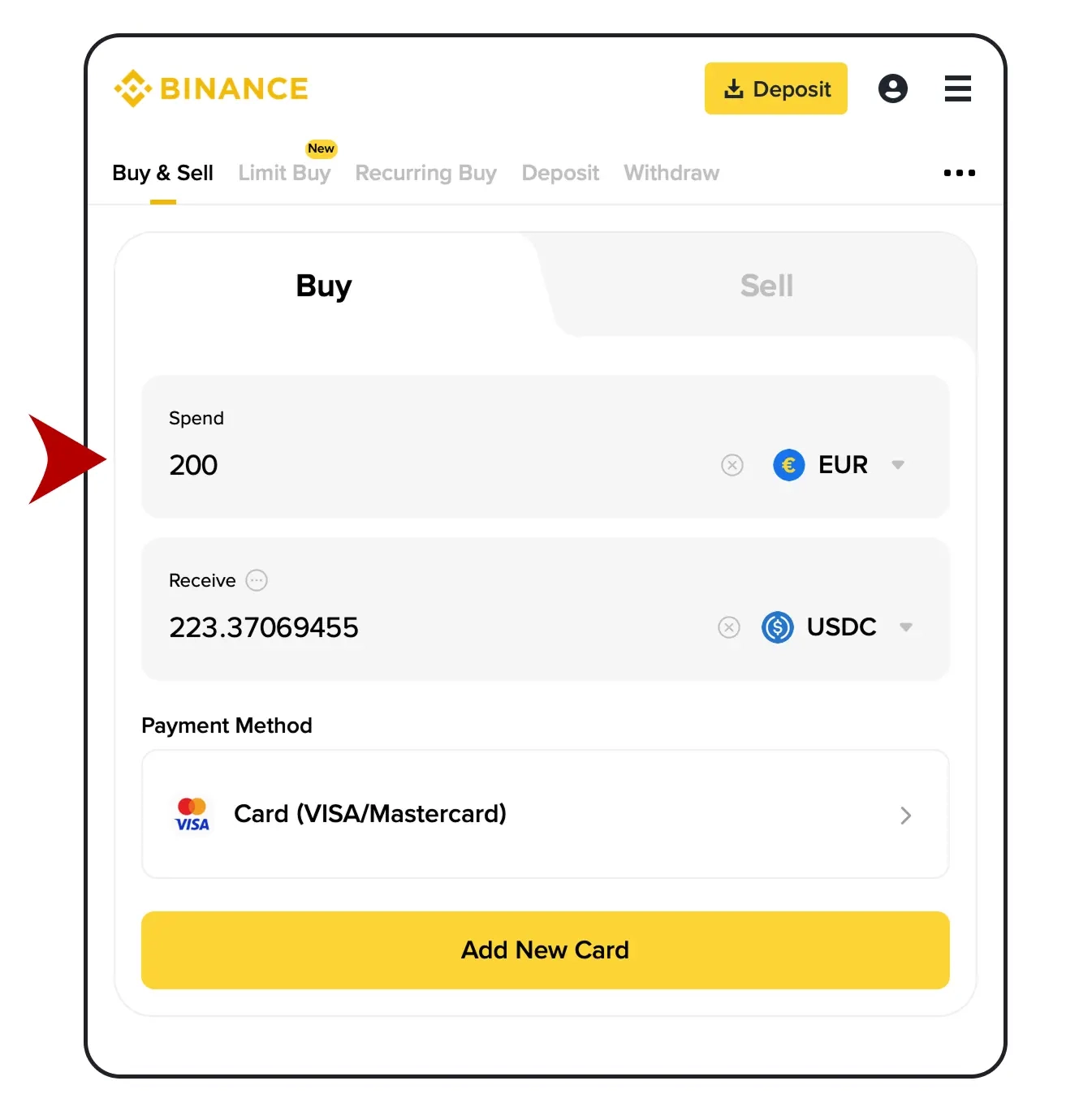
Choose USDC and pay
On the buy screen
- Enter the amount in EUR you want to spend.
- Choose the same crypto asset you selected in NOWPayments. In this example, that is USDC.
- Choose or add your payment method, review the purchase details, and complete the payment.
Allow for purchase and withdrawal fees when buying crypto. Check the current fees and minimum withdrawal amount before completing your purchase.
- Step 6 of 7
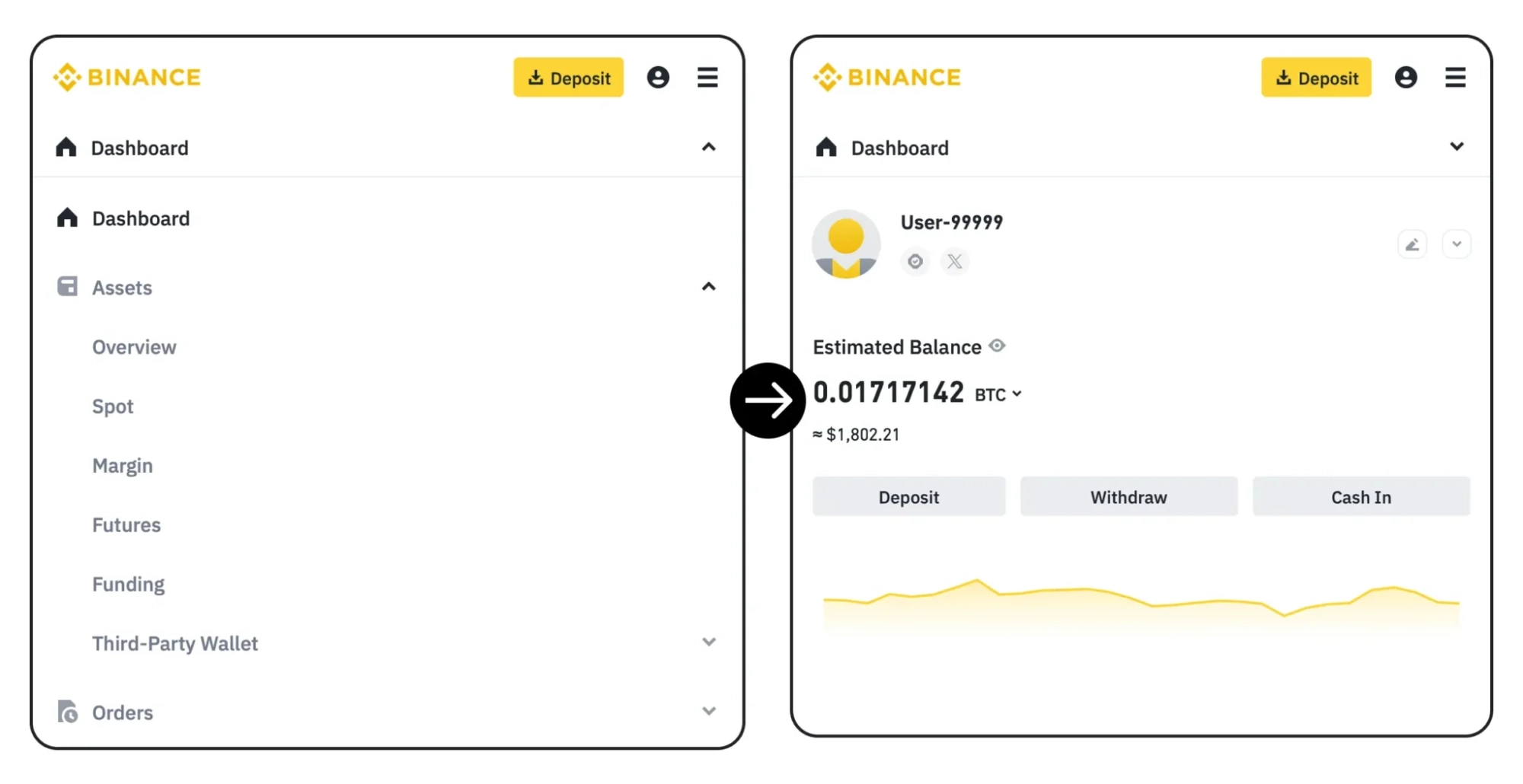
Go to your dashboard
From the Binance homepage
- Open your profile menu in the top-right corner.
- Select Dashboard, or open your wallet’s Assets overview.
- Choose Withdraw, then select the crypto withdrawal option.
- Step 7 of 7
Send your crypto
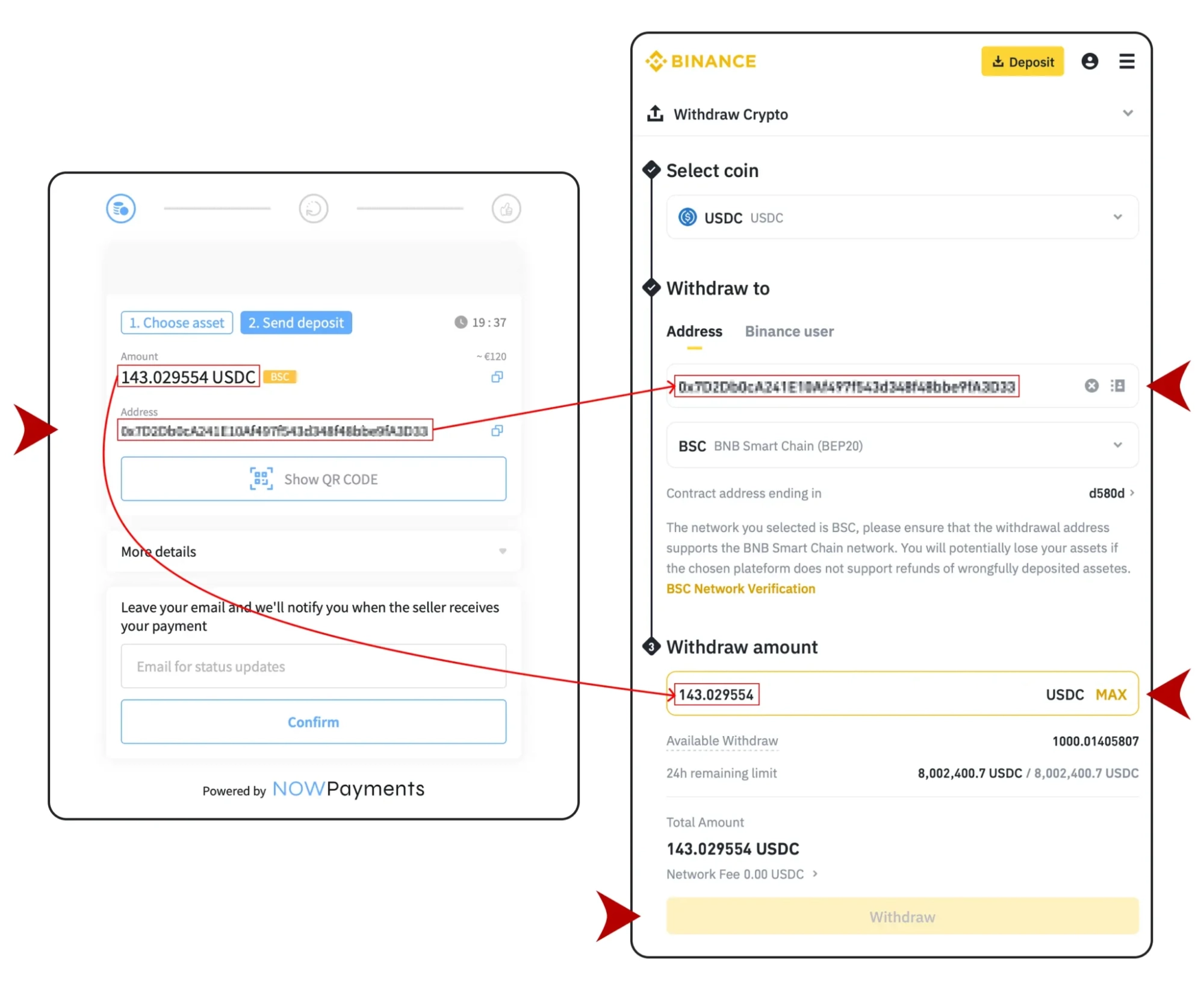
Fill in the withdrawal details
- Coin: select the same asset as your NOWPayments invoice, such as USDC.
- Wallet address: paste the address from your live NOWPayments payment screen.
- Network: match the invoice exactly. Only use BNB Smart Chain (BEP20) if your invoice specifies it.
- Amount: check that the final amount the recipient receives, after withdrawal fees, matches the amount requested on your invoice.
- Double-check the address, network, amount and payment deadline, then click Withdraw and complete Binance’s confirmation steps.
Binance shows the withdrawal fee and final receive amount before confirmation. Account for that fee so your order is not underpaid. Never copy an address or amount from these screenshots.
Payment sent? Check your order status.
Return to your NOWPayments screen to check progress while the transfer is confirmed. If you need help with your payment, contact our team with your order number and transaction ID.